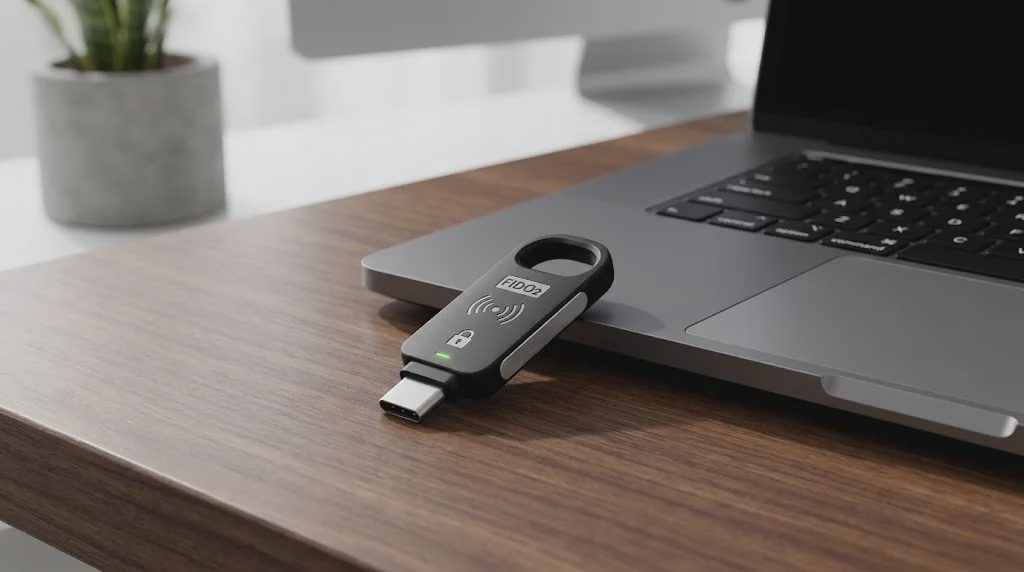
A stolen password can give an attacker access to an account, even when the password looks strong. Phishing makes this problem harder to solve because users can be tricked into entering their credentials on a fake login page. A FIDO2 security key offers another way to verify identity without relying on a password alone.
A FIDO2 security key is a physical authentication device that works with compatible websites, applications, and operating systems. Depending on the key and the service, it can provide a second authentication factor or support passwordless sign-in. Instead of sending a reusable password to a website, the key uses cryptographic credentials to prove that the user has an authorized authenticator.
However, not every security key supports every login method, and buying one does not automatically secure every account. Understanding how these devices work, what to check before choosing one, and how to prepare for a lost key can help you make a more informed decision.
What Is a FIDO2 Security Key?
A FIDO2 security key is a physical authenticator that supports the FIDO2 authentication standards. It commonly connects to a computer or mobile device through USB or NFC, while some compatible devices and implementations also support Bluetooth Low Energy (BLE).
The key is used to verify a login attempt for an account that has registered it in advance. Depending on its capabilities, the key may require a physical touch, a PIN, or another supported user-verification step.
Unlike a password, the private cryptographic key used for authentication is not sent to the website during sign-in. The website stores the corresponding public key and uses it to verify the authenticator's response.
FIDO2 combines two main technologies:
WebAuthn: A web authentication standard that allows websites and browsers to create and use public-key credentials.
CTAP: A protocol that allows a computer or mobile platform to communicate with compatible external authenticators, including physical security keys.
The FIDO Alliance explains these technologies in its official FIDO authentication specifications.
It is important to distinguish a FIDO2 security key from a generic USB drive. A USB storage device stores files, while a compatible security key performs authentication using supported cryptographic protocols. Simply plugging an ordinary USB drive into a computer does not make it a FIDO2 authenticator.
How Does a FIDO2 Security Key Work?
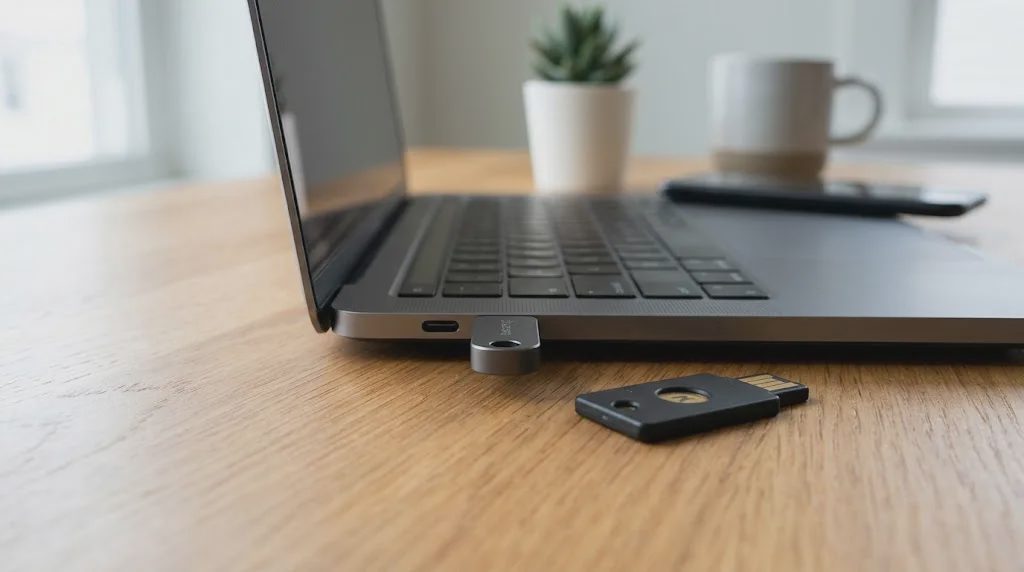
Using a security key generally involves two steps: registering the key with a supported account and presenting it when signing in.
1. Register the Key With an Account
First, open the account's security settings and look for an option to add a security key, passkey, or hardware authenticator.
Follow the service's enrollment instructions. Depending on the key and account, you may need to insert the device, tap it, create a PIN, or complete another verification step.
During registration, the authenticator creates a credential for the service. The service stores the public key and associated credential information, while the private key remains protected by the authenticator.
Registration is necessary because a website cannot automatically recognize an arbitrary security key as belonging to your account.
2. Use the Key to Sign In
When you return to the website, select the supported security-key sign-in option. The browser or operating system communicates with the authenticator and requests an authentication response.
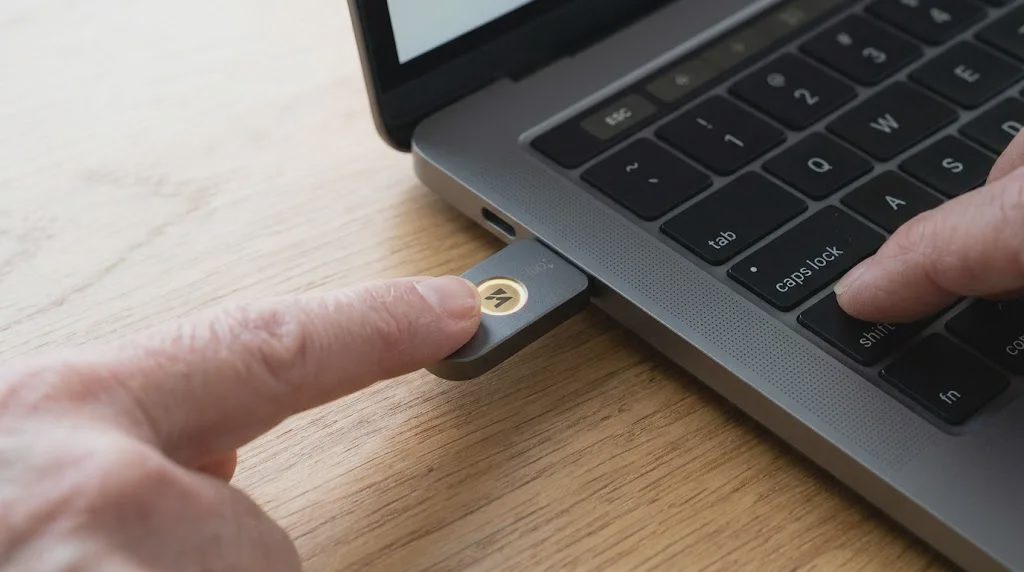
You may need to insert the key, tap it, enter its PIN, or complete another required action. The authenticator then produces a cryptographic response to the service's challenge.
The service verifies that response using the public key registered earlier. If the response and the service's other authentication requirements are satisfied, the login can proceed.
The key does not simply send a secret code that can be copied and reused like a password. The cryptographic response is tied to the authentication request and the intended service.
This design helps protect against ordinary phishing attacks. A fake website on a different domain generally cannot use a captured FIDO2 authentication response to sign in to the legitimate service.
Does a FIDO2 Security Key Replace Your Password?
It can, but not in every situation. Whether a security key replaces a password depends on the credential type, the key's capabilities, and the account's authentication configuration.
There are two common scenarios.
Passwordless Sign-In
Some FIDO2 security keys support passwordless credentials, commonly called passkeys. When the service supports this method, you may be able to sign in without entering a traditional account password.
The key may require a PIN or another user-verification step. A PIN used to unlock or authorize the authenticator is not necessarily the same as your website account password.
Two-Factor Authentication
A security key can also serve as an additional authentication factor. In this setup, you enter your username and password first, then use the registered key to complete authentication.
This can strengthen an existing password-based login without requiring an organization to replace its entire authentication process immediately.
One important limitation is that not every FIDO-compatible key supports passwordless sign-in. Some older security keys support second-factor authentication but lack the capabilities required for newer passwordless credentials. Check the specific model and the target service's requirements before purchasing.
USB vs. NFC vs. Bluetooth: Which Connection Should You Choose?
The connection type affects how conveniently a security key works with your devices. It does not, by itself, determine the key's security level.
USB Security Keys
USB keys connect directly to a compatible computer or device. Depending on the model, they may use USB-A or USB-C.
A USB key is a practical choice if you mainly sign in from a desktop computer or laptop and can keep the key accessible. Before buying, check the connector type and whether your devices have the required port or adapter.
NFC Security Keys
NFC-enabled keys can communicate with compatible devices through near-field communication. On supported phones, you can often bring the key close to the device to complete authentication.
NFC may be convenient if you frequently sign in on mobile devices. However, both the key and the phone or application must support the required authentication flow.
Bluetooth-Enabled Devices
Some authentication devices support Bluetooth Low Energy. Compatibility and availability depend on the authenticator, platform, and service.
Do not assume that every FIDO2 security key supports Bluetooth. If wireless use is important, confirm the exact supported connection methods rather than relying on a general product description.
For many users, the best connection is simply the one that works reliably with the devices and accounts they use most often.
What Should You Check Before Buying a FIDO2 Security Key?
Choosing a security key involves more than comparing its appearance or price. The most useful checks are compatibility, authentication features, and recovery options.
1. Confirm That Your Accounts Support It
Start with the accounts you want to protect. Check whether each service supports FIDO2 security keys and whether it permits the specific authentication method you intend to use.
A key that works with one account or platform may not work with another. Business accounts may also have administrator-controlled authentication policies that restrict which keys can be registered.
2. Check the Required Authentication Features
Decide whether you need a key for passwordless sign-in, an additional authentication factor, or both.
If you want passwordless authentication, verify that the key supports the necessary passkey capabilities. If the service requires a PIN or user verification, confirm that the device meets those requirements.
Product listings can use terms such as “FIDO,” “FIDO2,” “U2F,” and “passkey.” These terms are related, but they do not guarantee identical capabilities. Read the model's technical specifications.
3. Match the Connector to Your Devices
Check whether you need USB-A, USB-C, NFC, or a combination. Consider the computers and phones you actually use, including any restrictions imposed by workplace devices.
A key with several connection options may be more convenient, but additional interfaces are useful only if your devices support them.
4. Consider Physical Durability and Everyday Use
Think about where you will keep the key and how often you will carry it. A compact key may be easy to transport, while a design intended for a key ring may suit people who use it frequently.
Also consider whether you are comfortable carrying a separate authentication device. A key that is frequently misplaced or left behind may create unnecessary access problems.
5. Plan for a Backup
A security key can be lost, damaged, or unavailable when you need it. Before depending on one key, check the account's recovery options and whether you can register a second compatible key.
For important personal accounts or business administrator accounts, a backup key stored securely can reduce the risk of being locked out. Register it properly rather than assuming that an unregistered spare will work during an emergency.
Are FIDO2 Security Keys Safe From Phishing?
FIDO2 security keys are designed to provide phishing-resistant authentication. One reason is that the credential is scoped to the legitimate website or service, rather than being a reusable password that a user can type into any login page.
For example, if an attacker creates a fake sign-in page that resembles a legitimate service, the browser's origin checks help prevent the authenticator from producing a valid credential response for the wrong domain.
This makes a correctly implemented FIDO2 login substantially more resistant to common credential-harvesting attacks than a password entered into a fake page.
However, a security key is not a complete security solution. It does not automatically prevent malware from compromising a device, protect every active session from theft, or fix weak account recovery procedures. Organizations still need appropriate device security, access controls, monitoring, and incident response.
It is also important to register the key only through the legitimate service's security settings. Never follow an unexpected request to register a security key through an unfamiliar website or a suspicious message.
What Happens If You Lose Your FIDO2 Security Key?
Losing a key does not automatically mean that someone can access your accounts. The actual risk depends on the key's capabilities, whether it requires a PIN or user verification, and how each service manages credentials.
Take these steps if your key goes missing:
Use another registered sign-in method. If you registered a backup key or another supported recovery method, use it to regain access.
Review account security settings. From a trusted device, check the registered authenticators and remove the missing key when appropriate.
Register a replacement. Follow the service's official enrollment process and verify that the new key works.
Review suspicious activity. If you suspect the key was stolen or the account may be compromised, follow the service's security guidance and investigate recent account activity.
For a business account, contact the organization's IT or identity administrator if required. Company policies may determine how a missing key is revoked and replaced.
Do not wait until a key is lost to understand the recovery process. Test your backup method before relying on the key for an important account.
Is a FIDO2 Security Key Right for You?
A physical FIDO2 security key may be a good fit if you want stronger protection against phishing, need a dedicated authenticator, or manage accounts that require hardware-based authentication.
It may be especially useful for administrators, people with access to sensitive business systems, and users who prefer to keep an authentication credential separate from their everyday device.
A built-in or synchronized passkey may be more convenient if you frequently switch devices and prefer not to carry extra hardware. The right option depends on account support, your device ecosystem, and your recovery requirements.
Before deciding, answer four questions:
Do the services I use support the key and authentication method I want?
Does the key work with my computers and mobile devices?
Can I register a backup authenticator or recover the account securely?
Do I understand how to revoke the key if it is lost?
If the answers are clear, you can choose a key based on practical requirements rather than buying one simply because it advertises FIDO2 support.
Final Thoughts
A FIDO2 security key is a physical authenticator that uses public-key cryptography to help verify your identity when accessing supported accounts. Depending on its capabilities, it can provide an additional authentication factor or enable passwordless sign-in.
The most important buying considerations are service compatibility, supported authentication features, device connectivity, and account recovery. No single key works with every service or guarantees protection against every type of attack.
Choose a key that fits your actual devices and accounts, register it through official security settings, and prepare a backup before relying on it for critical access. These steps make a security key a more practical part of an overall account-security strategy.


No feedback yet — submit the first.