When a small business sends a proposal, employee record, invoice, or contract by email, the PDF can travel through several inboxes and devices. Learning how to password protect a pdf document in adobe reader adds a useful barrier before someone can open the file. It is not a complete security program, but it is a practical step for reducing accidental exposure when a document contains financial, legal, or personal information.
What Adobe Reader can and cannot do
The first detail to understand is the difference between Adobe Reader and Adobe Acrobat. Adobe Reader, now commonly called Adobe Acrobat Reader, is primarily a tool for viewing, printing, signing, and commenting on PDFs. In many versions, it does not include the full set of PDF security tools needed to create a password-protected file. Adobe Acrobat Standard or Acrobat Pro generally provides the editing and protection features.
If you open a PDF in Reader and cannot find a security option under the File or Tools menus, that is probably a product limitation rather than a mistake. Do not download a questionable “unlocker” or browser extension to compensate. Those tools can expose the very document you are trying to protect. Instead, confirm which Adobe subscription or licensed desktop application your business uses.
The phrase password protect a pdf document in adobe reader is often used broadly, even when the actual task requires Acrobat. That distinction matters when planning software costs. A single Acrobat license can be useful for an office that regularly prepares sensitive forms, while occasional users may only need a separate secure-sharing service.
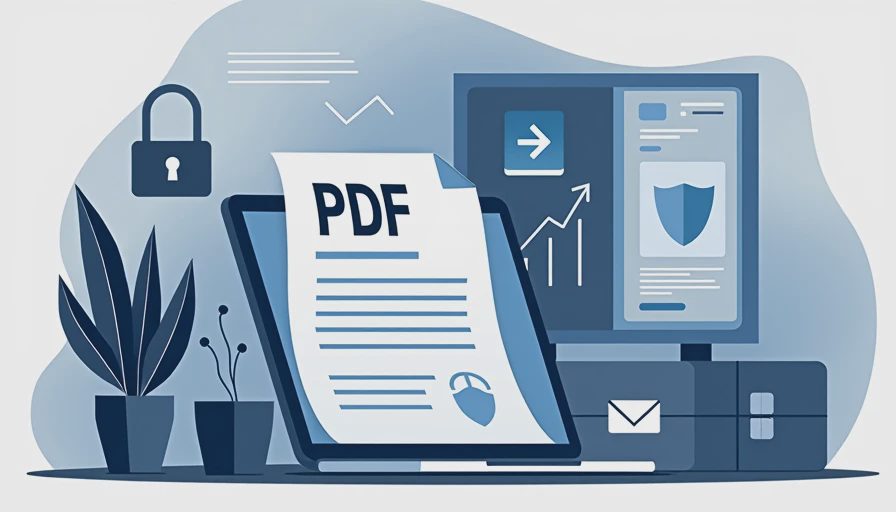
How to password protect a pdf document in adobe reader with Acrobat
The workflow is straightforward when the installed Adobe product supports protection. Open the finished PDF, then choose the protection or security tool. In current Acrobat versions, this may appear as Protect a PDF, Protect Using Password, or a similar command under All Tools. Select the option that requires a password to open the document, not merely a permission password that controls printing or editing.
Create a long, unique password. A practical business standard is at least 14 characters, using several unrelated words with numbers or punctuation. Do not use the company name, the recipient’s name, a phone number, or the same password used for Microsoft 365, QuickBooks, or the office Wi-Fi. A password manager such as 1Password, Bitwarden, or Keeper can generate and store a strong value without forcing staff to memorize it.
Confirm the password when prompted and save the protected copy with a clear filename. Keep the original unprotected version in a restricted folder or delete it if there is no business reason to retain it. Then close and reopen the new PDF to test the result. Testing catches a surprisingly common problem: someone protects the wrong copy, saves over an earlier version, or sends an unprotected attachment by mistake.
If Acrobat offers encryption or compatibility settings, use the current recommended option unless an older recipient system requires something different. Very old PDF viewers can have trouble with newer encryption settings, but lowering protection should be a deliberate decision rather than an automatic workaround.
Send the password through a separate channel
Password protection works poorly when the password and file travel together. Sending “Here is the report” and including the password in the same email gives an attacker or misdirected recipient everything needed to open the document. Send the PDF by email, then provide the password in a phone call, text message, or separate business chat. For a sensitive payroll or legal file, verify the recipient’s phone number before sharing the password.
A simple naming routine helps. Use a filename such as Client-Agreement-May-2025.pdf rather than including the password, Social Security number, or other sensitive detail in the name. Tell the recipient that the file is encrypted and explain how you will provide the password. This reduces support messages and makes unusual requests easier to notice.
Before sending, check the To and Cc fields, attachment name, and recipient domain. Auto-complete can select a former customer, a personal address, or a similarly named contact. If your team sends protected PDFs every week, create a short checklist in the shared operations guide. The goal is not paperwork for its own sake; it is to make the safe action the fastest action.

Common mistakes that weaken PDF protection
The most frequent mistake is treating a PDF password as a substitute for access management. A shared password can be forwarded, photographed, or stored in an unmanaged chat. If five employees need the file, you cannot easily tell who opened it. For recurring collaboration, a managed platform such as Microsoft SharePoint, OneDrive, Google Drive, Dropbox Business, or a client portal can provide named accounts, expiration dates, and access logs.
Another mistake is leaving the unprotected source in Downloads, an email attachment folder, or a shared drive. A protected attachment does not protect the Word document, spreadsheet, or scan used to create it. Review temporary files and cloud sync folders, especially on a personal laptop. Enable full-disk encryption and screen lock on business devices so a lost computer does not expose local copies.
Some users also confuse a password that opens a file with a password that restricts editing, copying, or printing. Permission controls can discourage casual changes, but they should not be treated as a guarantee. If the information is highly sensitive, limit who receives it, use a secure portal, and consider whether the document should be sent at all.
A practical decision for a small business
For an occasional invoice or low-risk internal form, password protection in Acrobat is inexpensive and easy to explain. For employee tax records, medical information, customer identity documents, banking details, or acquisition paperwork, use a more controlled workflow. A secure portal with named users and expiration can cost roughly $10 to $30 per user each month, but that expense can be easier to justify than tracking a shared password across email threads.
When evaluating a tool, ask five operational questions: Can the business revoke access after sending? Does it record downloads? Can an administrator remove a departed employee? Does it support multifactor authentication? Will staff actually use it without creating local copies everywhere? A product with fewer features but reliable adoption is often safer than an expensive platform that employees bypass.
The right way to password protect a pdf document in adobe reader is therefore part of a larger access decision. Use the built-in Adobe workflow for appropriate one-off documents, separate the password from the file, test the protected copy, and escalate to managed sharing when the information or audience requires accountability.
Final check before you click Send
Open the exact attachment you plan to send and confirm it requests a password. Verify the recipient, remove unnecessary recipients, and inspect the filename for private details. Send the password through a different channel, then record where the authoritative copy is stored. If the password is shared by a team, place it in an approved password manager rather than a spreadsheet or sticky note.
For teams that regularly handle confidential files, document the process in one page and practice it with a harmless sample PDF. Show employees how to password protect a pdf document in adobe reader when their Adobe license supports the feature, how to recognize when Reader lacks the needed tool, and when to use a secure portal instead. That small investment turns an individual trick into a repeatable security control.




No feedback yet — submit the first.