Strong password examples are useful when your team needs a clear starting point instead of another vague warning to “use better passwords.” For a small business, one reused password can expose email, payroll, cloud files, customer records, and software subscriptions. The goal is not to make employees memorize impossible strings. It is to create unique, long credentials and a repeatable process for storing and protecting them.
What Makes a Password Strong?
A strong password is long, unique, difficult to guess, and not based on information connected to the account owner. A password such as Summer2024! is easy for attackers to test because it uses a common season, a year, and a predictable symbol. A company name followed by 123 is even weaker, especially if that information appears on a public website or social profile.
The best strong password examples are usually long passphrases or randomly generated strings. A passphrase could combine several unrelated words, such as “harbor-lantern-orbit-cactus,” although you should not copy that exact example for a real account. A password manager can create something like “v7$Qm2!rL9#tX4@p,” which is much harder to predict and does not need to be memorized.
Length matters because it increases the number of possible combinations an attacker must test. Four or five unrelated words can be easier for a person to use than a short password packed with substitutions. Avoid famous quotations, song lyrics, keyboard patterns, birthdays, pet names, and product names. Attackers use automated tools that test these familiar patterns quickly.
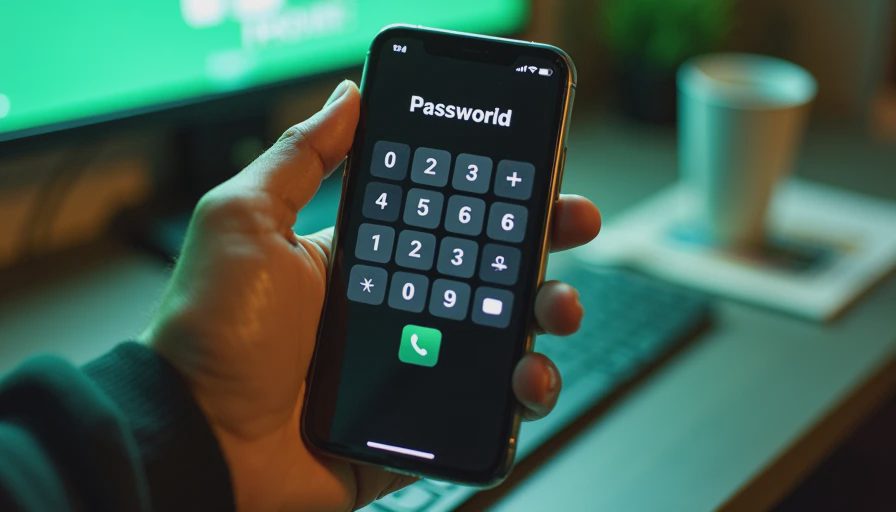
Strong Password Examples You Can Adapt Safely
Strong password examples should teach a pattern, not become passwords that everyone copies. For personal work accounts, think in terms of a private sentence or unrelated word combination. “Copper-window-river-mint” demonstrates the idea, but it should be replaced with words selected privately. For machine-generated credentials, use a password manager and select at least 16 characters when the service allows it.
A useful approach is to start with four unrelated words, add punctuation if required, and make the result unique to one account. For example, a team member might privately create a passphrase based on “violet,” “garage,” “ticket,” and “planet,” then separate the words with different characters. Do not use a public example word-for-word, and do not create one master password that is reused everywhere.
For business systems, random generation is usually better than human-created passwords. Password managers from providers such as 1Password, Bitwarden, Dashlane, or Keeper can generate and store credentials without leaving them in a spreadsheet or a sticky note. Business plans also commonly support shared vaults, administrative controls, and employee removal when someone leaves.
The most important rule is uniqueness. If an attacker obtains a password from an unrelated shopping site, that same password should not unlock Microsoft 365, Google Workspace, QuickBooks, or a remote-access tool. Unique credentials limit the damage from one breach.
How Small Businesses Should Use a Password Manager
A password manager turns good password behavior into a workflow instead of a memory contest. Choose a business plan that supports separate user accounts, centralized billing, recovery options, audit information, and controlled sharing. Do not let the whole office share one login to the vault. Each employee should have an individual account so access can be removed without changing every credential.
Begin with the accounts that could cause the most damage: email administration, domain registration, payroll, banking, file storage, customer relationship software, and remote support tools. Importing old credentials can be useful, but treat the migration as an opportunity to remove duplicates and replace reused passwords. Keep emergency recovery information in a documented location that authorized managers can access.
A password manager also helps with onboarding and offboarding. A new employee can receive access to the vaults needed for the job without seeing unrelated credentials. When an employee departs, remove their account, revoke active sessions, recover company devices, and rotate any password they knew directly. This is more reliable than asking people to remember every system they touched.
Add Multi-Factor Authentication to Important Accounts
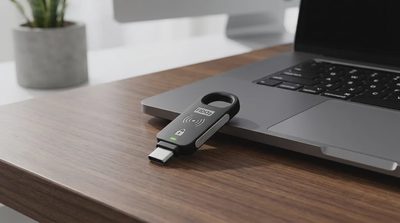
Strong password examples are only one part of account security. Multi-factor authentication, or MFA, requires another proof of identity after the password. That proof might be an authenticator app, a hardware security key, or a one-time code. MFA can block many account takeovers even when a password has been stolen through phishing or a separate data breach.
Prioritize email, administrator accounts, financial services, cloud storage, password managers, and remote-access platforms. Authenticator apps and security keys are generally stronger choices than text messages, although SMS is still better than using a password alone when stronger options are unavailable. Store backup codes securely and limit who can reset MFA methods.
Use separate administrator accounts for administrative work. A manager who uses an admin account for everyday email creates more opportunity for a phishing message to reach a highly privileged session. Standard user accounts should be the default, with elevated access used only when necessary.
A Practical Policy for Employees
Your written policy can be short and specific. Require a unique password for every business system, prohibit password sharing through email or chat, require MFA wherever available, and direct employees to the approved password manager. Explain that the company will never ask for a password by email. Give staff a simple reporting route for suspicious messages, unexpected login alerts, or accidental disclosures.
Avoid rules that create predictable behavior. Forcing everyone to change passwords every month can encourage small variations such as changing June2024! to July2024!. A better trigger is a suspected compromise, a confirmed breach, a role change, or an employee departure. Require longer passwords and MFA rather than frequent cosmetic changes.
Review access at least quarterly. Compare active accounts with the current employee list, remove stale vendor access, check shared vault membership, and confirm that former employees cannot sign in. A 20-minute review can uncover more risk than another hour of generic security training.
A Simple Password Cleanup Plan
Start by listing every important system and identifying its owner. Mark accounts that use shared, reused, old, or unknown credentials. Replace those passwords with manager-generated values, turn on MFA, and record recovery contacts. Next, review administrator privileges and remove access that is not required for a person’s current role.
After the cleanup, test the process with a low-risk account. Ask an employee to retrieve a credential from the manager, complete MFA, and report a simulated phishing message. This reveals whether the instructions work in a busy office. Update the process based on what actually causes confusion.
Strong password examples can help during training, but the lasting improvement comes from tools and accountability. A password manager, MFA, sensible access reviews, and a clear incident-reporting habit create layers that do not depend on perfect employee memory.
If your business has fewer than 100 employees, you do not need a large security department to begin. Pick the highest-value accounts, fix reuse first, and put ownership in writing. That practical sequence reduces exposure without forcing the team into an expensive or complicated security program.

No feedback yet — submit the first.